 pyr0ball
1e535182a8
pyr0ball
1e535182a8
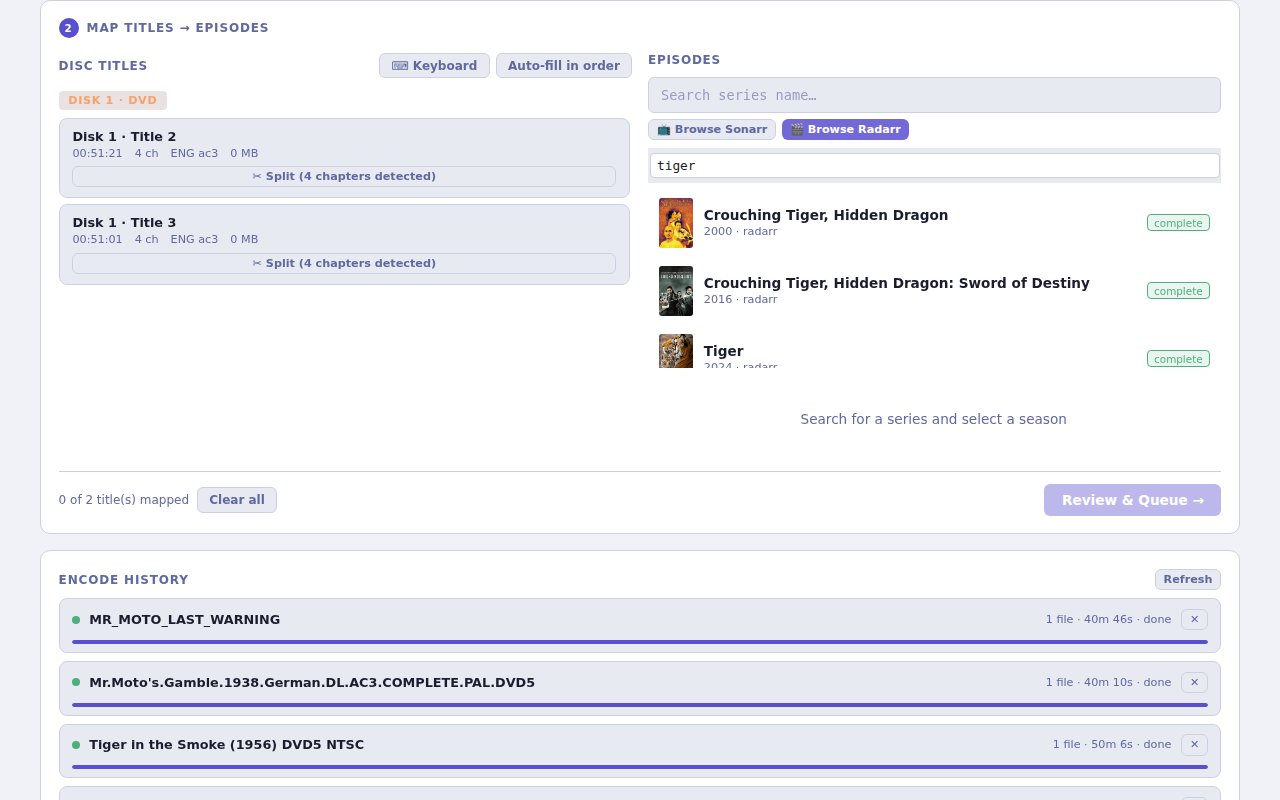
- Add 03-radarr-filter.png: browse + filter movies by partial title
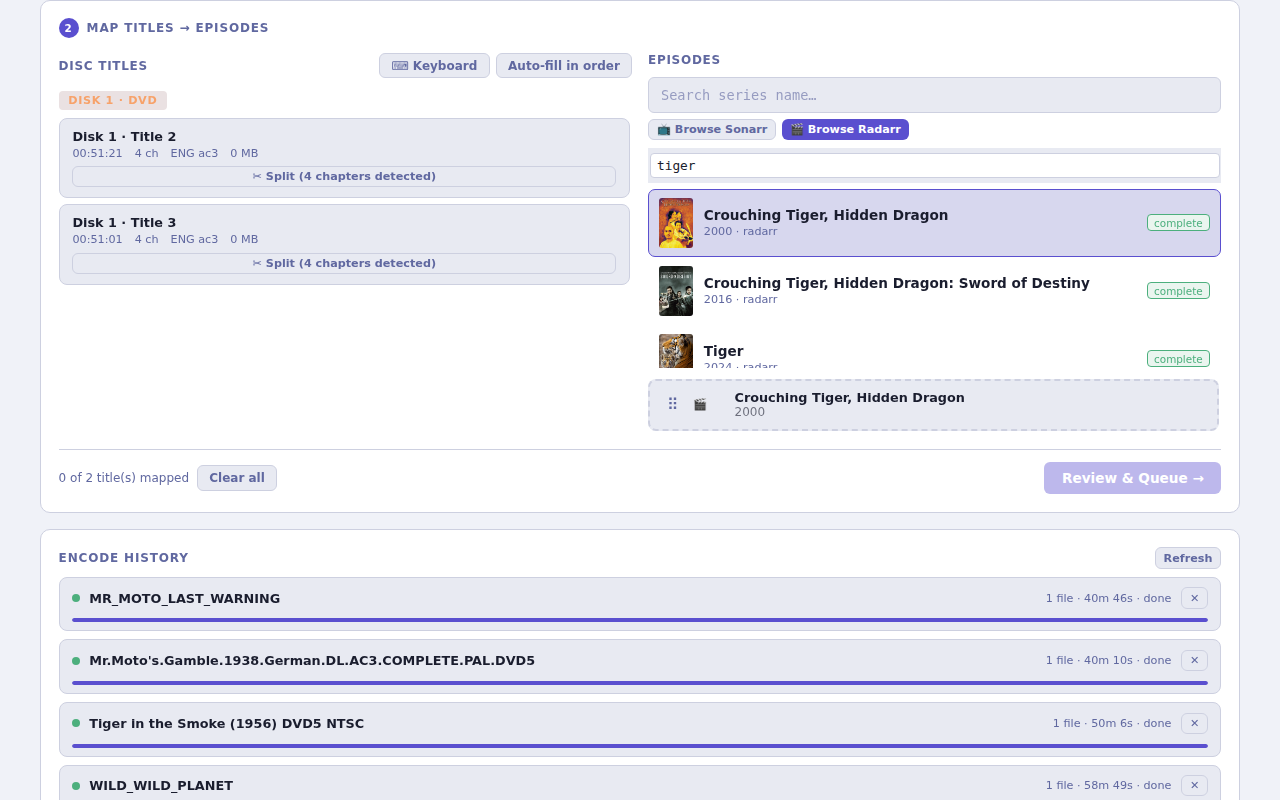
- Add 04-radarr-selected.png: movie selected in browse panel
- Add 05-mapped.png: completed drag-and-drop title mapping
- Update 03-title-mapping.png to completed-state screenshot
- docs/integrations/radarr.md: add workflow section with 3 annotated screenshots
- docs/quickstart.md: rewrite step 5 with browse/filter/drag workflow
- README.md and docs/index.md: use completed-mapping screenshot
2 KiB
Radarr Integration
Discarr notifies Radarr when a movie encode completes so it can trigger an import scan automatically.
1. Add the notification hook
In Radarr, go to Settings → Connect → Add Connection → Custom Script.
| Field | Value |
|---|---|
| Name | Discarr |
| Path | /opt/discarr/scripts/radarr-notify.sh |
| On Import | ✓ |
| On Movie File Delete | ✓ |
2. Configure the API key
In ~/.config/media-postprocessor/api-keys.conf:
RADARR_URL=http://your-radarr-host:7878/radarr
RADARR_API_KEY=your-radarr-api-key
Find your API key in Radarr under Settings → General → Security → API Key.
3. Map disc titles to movies
When you scan a disc in Discarr, each title needs to be mapped to a Radarr movie before it can be queued for encoding.
Browse Radarr movies
Click Browse Radarr to open your movie library, then use the search box to filter by title:
Select and map
Click the movie to select it. The title card on the left automatically links to the selected movie:
Drag a title to confirm the mapping
Drag the title card from the left panel and drop it onto the matching movie slot on the right. A green border confirms the mapping:
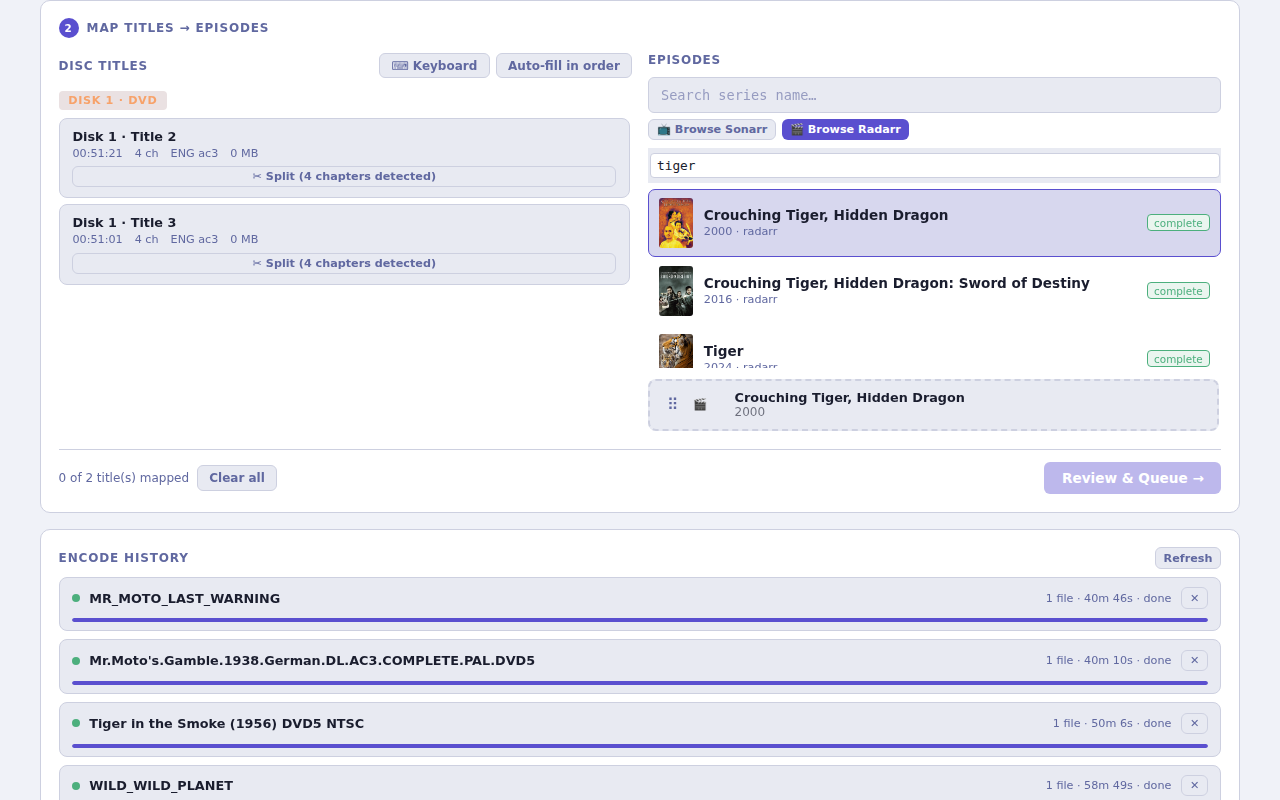
Once all titles are mapped, click Review & Queue → to start encoding.
4. How it works
Encode completes
      │
      ▼
radarr-notify.sh
      │  POST /api/v3/command
      │  {"name": "RescanMovie", "movieId": <id>}
      ▼
Radarr imports file
5. Test the connection
Click Test on the connection in Radarr. To test end-to-end, queue a movie encode in Discarr and watch Activity → Queue in Radarr for the import.