 pyr0ball
12f540d072
pyr0ball
12f540d072
- Add 4 Playwright screenshots: main UI, scanning, title mapping, mobile
- Embed screenshots in README, index.md, and quickstart.md
- Sanitize docs: replace real name/hostname (alan/strahl) with
  generic examples (mediauser/encode-box)
- ffmpeg.md: add NVENC, QSV, and VAAPI hardware acceleration sections;
  document QSV custom build requirement and jellyfin-ffmpeg workaround
2.2 KiB
2.2 KiB
Quick Start
1. Install Discarr
Follow the installation guide. For the fastest path:
git clone https://git.opensourcesolarpunk.com/Circuit-Forge/discarr
cd discarr
sudo bash install.sh
2. Configure API keys
mkdir -p ~/.config/media-postprocessor
cp api-keys.conf.example ~/.config/media-postprocessor/api-keys.conf
$EDITOR ~/.config/media-postprocessor/api-keys.conf
Minimum config:
SONARR_URL=http://your-sonarr-host:8989/sonarr
SONARR_API_KEY=your-sonarr-api-key

RADARR_URL=http://your-radarr-host:7878/radarr
RADARR_API_KEY=your-radarr-api-key
Find your API keys in Sonarr/Radarr under Settings → General → Security → API Key.
3. Start Discarr
# If installed as a service:
systemctl start discarr

# Or run directly:
node /opt/discarr/server.js

# Or with Docker:
docker run -d -p 8603:8603 \
  -v ~/.config/media-postprocessor:/root/.config/media-postprocessor:ro \
  -v /path/to/media:/media \
  pyr0ball/discarr:latest
Open http://localhost:8603.
4. Scan a disc
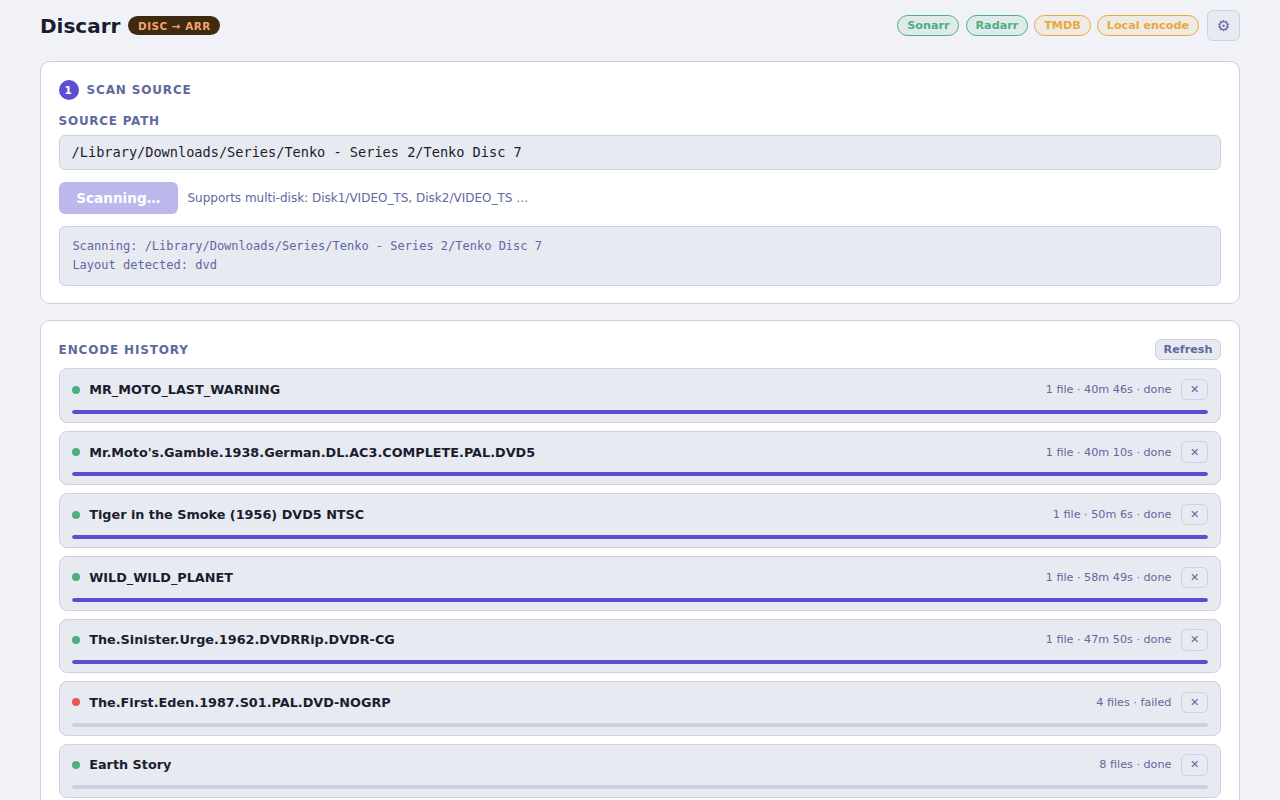
- Paste the path to a disc directory or ISO (e.g.
/media/disc/VIDEO_TS) into the Path field - Click Scan
- Discarr lists the disc titles with duration and chapter count
5. Map titles to arr items
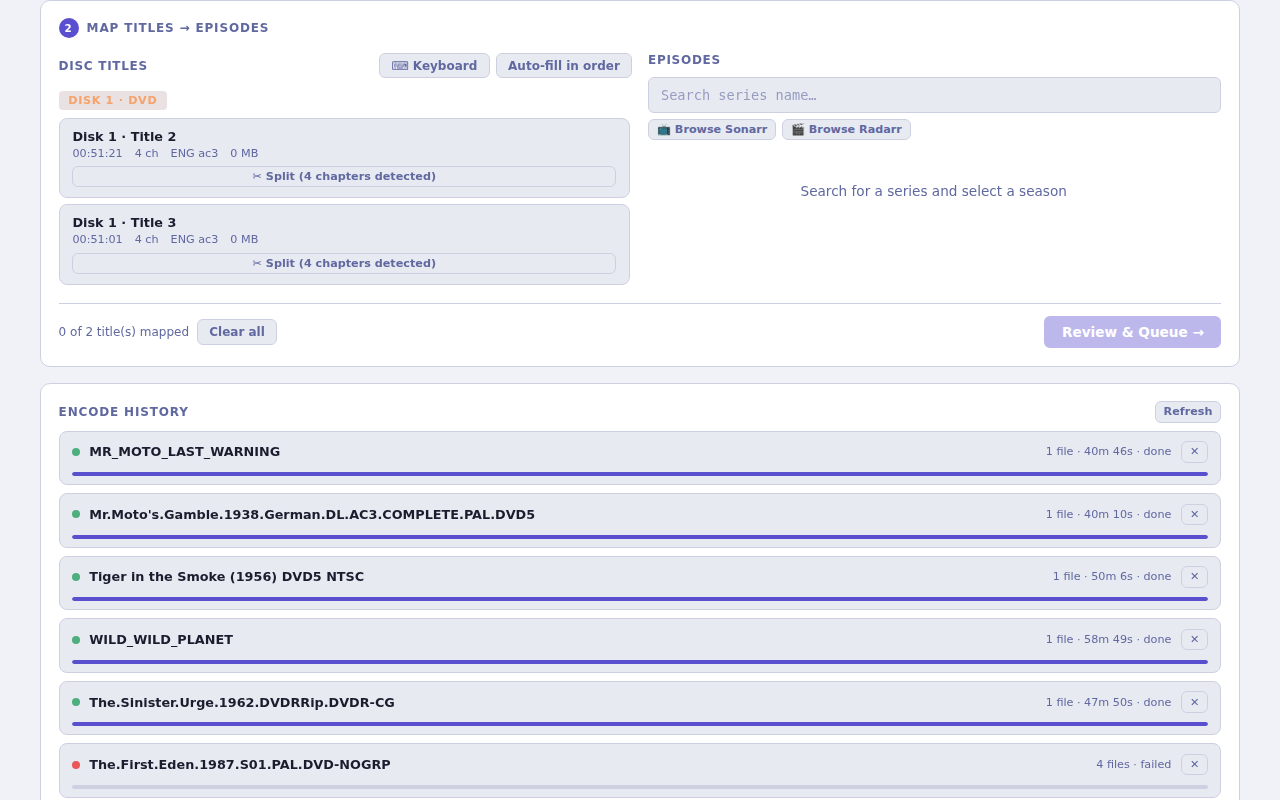
For each title:
- Choose TV (Sonarr) or Movie (Radarr)
- Search for the series or movie name
- For TV: select the season and episode(s) the title maps to
- Click Queue
6. Monitor the encode
The Queue tab shows running and pending encode jobs. Each job shows:
- Input file and mapped target
- Encode progress (% and ETA)
- Status:
pending→encoding→notifying→done
Once encoding finishes, Discarr fires the notification hook and Sonarr/Radarr picks up the import automatically.
Next steps
- Set up notification hooks so Sonarr/Radarr trigger scans automatically
- Configure SSH transcode workers to offload encoding to a dedicated machine
- Full configuration reference