 pyr0ball
01aae2eec8
pyr0ball
01aae2eec8
Recipe corpus (#108):
- Add _MAIN_INGREDIENT_SIGNALS to tag_inferrer.py (Chicken/Beef/Pork/Fish/Pasta/
  Vegetables/Eggs/Legumes/Grains/Cheese) — infers main:* tags from ingredient names
- Update browser_domains.py main_ingredient categories to use main:* tag queries
  instead of raw food terms; recipe_browser_fts now has full 3.19M row coverage
  (was ~1.2K before backfill)

Bug fixes:
- Fix community posts response shape (#96): add total/page/page_size fields
- Fix export endpoint arg types (#92)
- Fix household invite store leak (#93)
- Fix receipts endpoint issues
- Fix saved_recipes endpoint
- Add session endpoint (app/api/endpoints/session.py)

Shopping list:
- Add migration 033_shopping_list.sql
- Add shopping schemas (app/models/schemas/shopping.py)
- Add ShoppingView.vue, ShoppingItemRow.vue, shopping.ts store

Frontend:
- InventoryList, RecipesView, RecipeDetailPanel polish
- App.vue routing updates for shopping view

Docs:
- Add user-facing docs under docs/ (getting-started, user-guide, reference)
- Add screenshots
2.3 KiB
Receipt OCR
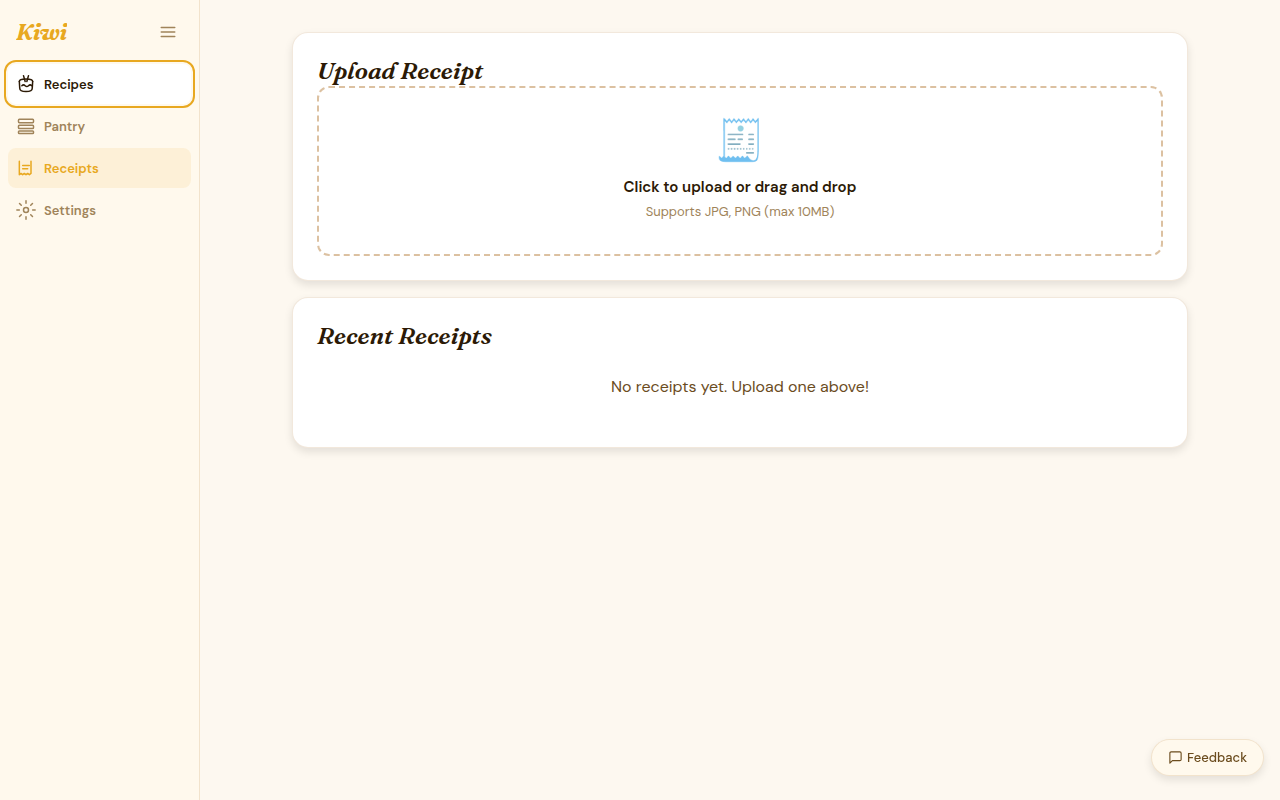
Receipt OCR automatically extracts grocery line items from a photo of your receipt and adds them to your pantry after you approve. It's available on the Paid tier and BYOK-unlockable on Free.
Upload a receipt
- Click Receipts in the sidebar
- Click Upload receipt
- Take a photo or select an image from your device
Supported formats: JPEG, PNG, HEIC, WebP. Maximum file size: 10 MB.
How OCR processing works
When a receipt is uploaded:
- OCR runs — the LLM reads the receipt image and identifies line items, quantities, and prices
- Review screen — you see each extracted item with its detected quantity
- Approve or edit — correct any mistakes, remove items you don't want tracked
- Confirm — approved items are added to your pantry in bulk
The whole flow is designed around human approval — Kiwi never silently adds items to your pantry. You always see what's being imported and can adjust before confirming.
Reviewing extracted items
Each extracted line item shows:
- Product name — as extracted from the receipt
- Quantity — detected from the receipt text (e.g., "2 × Canned Tomatoes")
- Confidence — how certain the OCR is about this item
- Edit — correct the name or quantity inline
- Remove — exclude this item from the import
Low-confidence items are flagged with a yellow indicator. Review those carefully — store abbreviations and handwriting can trip up the extractor.
Free tier behavior
On the Free tier without a BYOK backend configured:
- Receipts are stored and displayed
- OCR does not run automatically
- You can enter items from the receipt manually using the item list view
To enable automatic OCR on Free tier, configure a BYOK LLM backend.
Tips for better results
- Flatten the receipt: lay it on a flat surface rather than crumpling
- Include the full receipt: get all four edges in frame
- Good lighting: avoid glare on thermal paper
- Fresh receipts: faded thermal receipts (older than a few months) are harder to read
Re-running OCR
If OCR produced poor results, you can trigger a re-run from the receipt detail view. Each re-run uses a fresh extraction — previous results are discarded.