 pyr0ball
8e36863a49
pyr0ball
8e36863a49
Backend
- dev-api.py: Q&A suggest endpoint, Log Contact, cf-orch node detection in wizard
  hardware step, canonical search_profiles format (profiles:[...]), connections
  settings endpoints, Resume Library endpoints
- db_migrate.py: migrations 002/003/004 — ATS columns, resume review, final
  resume struct
- discover.py: _normalize_profiles() for legacy wizard YAML format compat
- resume_optimizer.py: section-by-section resume parsing + scoring
- task_runner.py: Q&A and contact-log task types
- company_research.py: accessibility brief column wiring
- generate_cover_letter.py: restore _candidate module-level binding

Frontend
- InterviewPrepView.vue: Q&A chat tab, Log Contact form, MarkdownView rendering
- InterviewCard.vue: new reusable card component for interviews kanban
- InterviewsView.vue: rejected analytics section with stage breakdown chips
- ResumeProfileView.vue: sync with new resume store shape
- SearchPrefsView.vue: cf-orch toggle, profile format migration
- SystemSettingsView.vue: connections settings wiring
- ConnectionsSettingsView.vue: new view for integration connections
- MarkdownView.vue: new component for safe markdown rendering
- ApplyWorkspace.vue: a11y — h1→h2 demotion, aria-expanded on Q&A toggle,
  confirmation dialog on Reject action (#98 #99 #100)
- peregrine.css: explicit [data-theme="dark"] token block for light-OS users (#101),
  :focus-visible outline (#97)
- wizard.css: cf-orch hardware step styles
- WizardHardwareStep.vue: cf-orch node display, profile selection with orch option
- WizardLayout.vue: hardware step wiring

Infra
- compose.yml / compose.cloud.yml: cf-orch agent sidecar, llm.cloud.yaml mount
- Dockerfile.cfcore: cf-core editable install in image build
- HANDOFF-xanderland.md: Podman/systemd setup guide for beta tester
- podman-standalone.sh: standalone Podman run script

Tests
- test_dev_api_settings.py: remove stale worktree path bootstrap (credential_store
  now in main repo); fix job_boards fixture to use non-empty list
- test_wizard_api.py: update profiles assertion to superset check (cf-orch added);
  update step6 assertion to canonical profiles[].titles format
3 KiB
Apply Workspace
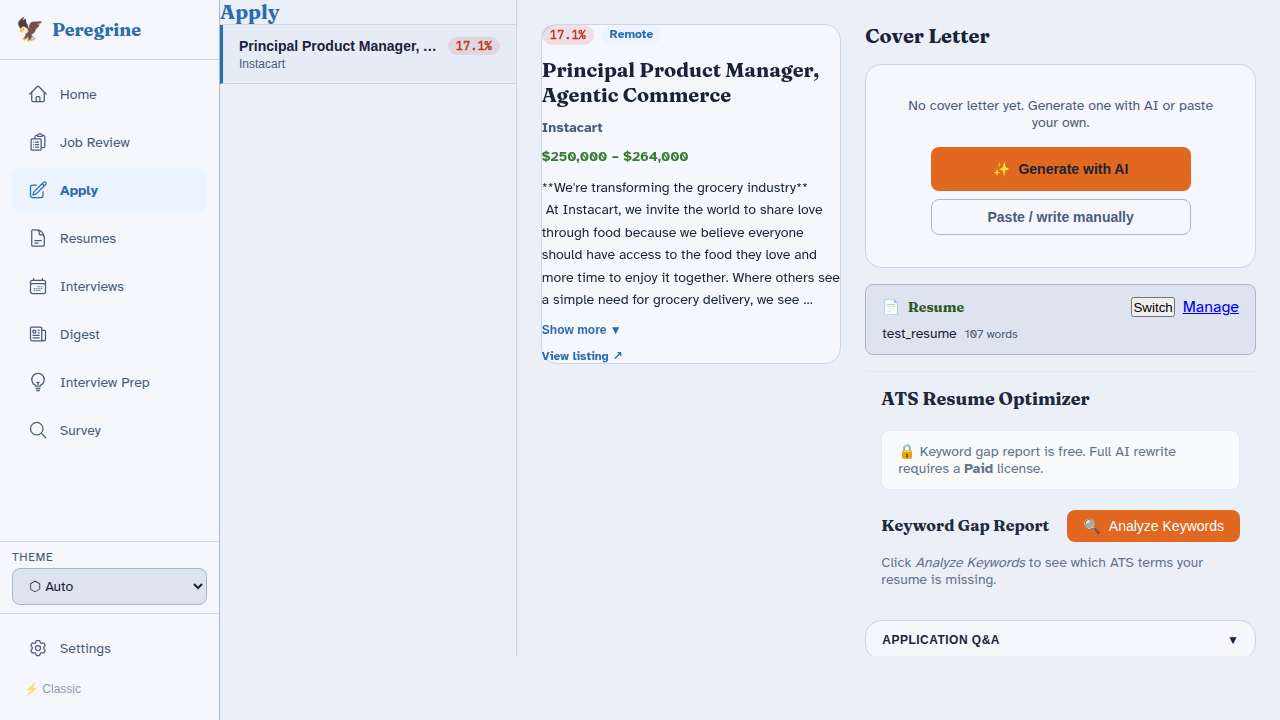
The Apply Workspace is where you generate cover letters, export application documents, and record that you have applied to a job.
Accessing the Workspace
Navigate to page 4 — Apply in the sidebar. The workspace lists all jobs with status approved, sorted by date approved.
Cover Letter Generation
Click Generate Cover Letter on any job card. Peregrine runs as a background task so you can continue navigating the UI.
What the generator uses
- Your career summary and resume data from
config/user.yaml - The job title and job description
- Company name — used to detect mission-aligned industries
- Mission alignment notes from
config/user.yaml(e.g. a personal note about why you care about music-industry companies)
Fallback chain
Cover letters use the cover letter fallback order from config/llm.yaml. By default: ollama → claude_code → vllm → github_copilot → anthropic. See LLM Router for details.
Mission alignment
If the company or job description matches one of your configured mission industries (music, animal welfare, education), the generator injects a personalised paragraph 3 hint into the prompt. This produces a cover letter that reflects authentic alignment rather than generic enthusiasm.
Editing the Cover Letter
After generation, the cover letter appears in an editable text area. Edit freely — changes are saved locally and do not trigger a re-generation.
Click Save to write the updated text back to the database.
PDF Export
Click Export PDF to generate a formatted PDF of the cover letter. The PDF is saved to your docs_dir (configured in config/user.yaml, default: ~/Documents/JobSearch).
The filename format is: {Company}_{Title}_{Date}_CoverLetter.pdf
Marking Applied
Once you have submitted your application externally, click Mark Applied. This:
- Sets the job status to
applied - Records
applied_attimestamp - Moves the job out of the Apply Workspace and into the Interviews kanban (in
appliedpre-stage)
Rejecting a Listing
Changed your mind about a job you approved? Click Reject Listing to set it to rejected status. This removes it from the workspace without affecting your cover letter draft (the text remains in the database).
Cover Letter Background Task Status
The sidebar shows a live indicator (updated every 3 seconds) of running and queued background tasks. If a cover letter generation is in progress you will see it there.
A task can have these statuses:
- queued — waiting to start
- running — actively generating
- completed — finished; reload the page to see the result
- failed — generation failed; check the logs
Only one queued or running task per job is allowed at a time. Clicking Generate Cover Letter on a job that already has a task in progress is a no-op.