 pyr0ball
8e36863a49
pyr0ball
8e36863a49
Backend
- dev-api.py: Q&A suggest endpoint, Log Contact, cf-orch node detection in wizard
  hardware step, canonical search_profiles format (profiles:[...]), connections
  settings endpoints, Resume Library endpoints
- db_migrate.py: migrations 002/003/004 — ATS columns, resume review, final
  resume struct
- discover.py: _normalize_profiles() for legacy wizard YAML format compat
- resume_optimizer.py: section-by-section resume parsing + scoring
- task_runner.py: Q&A and contact-log task types
- company_research.py: accessibility brief column wiring
- generate_cover_letter.py: restore _candidate module-level binding

Frontend
- InterviewPrepView.vue: Q&A chat tab, Log Contact form, MarkdownView rendering
- InterviewCard.vue: new reusable card component for interviews kanban
- InterviewsView.vue: rejected analytics section with stage breakdown chips
- ResumeProfileView.vue: sync with new resume store shape
- SearchPrefsView.vue: cf-orch toggle, profile format migration
- SystemSettingsView.vue: connections settings wiring
- ConnectionsSettingsView.vue: new view for integration connections
- MarkdownView.vue: new component for safe markdown rendering
- ApplyWorkspace.vue: a11y — h1→h2 demotion, aria-expanded on Q&A toggle,
  confirmation dialog on Reject action (#98 #99 #100)
- peregrine.css: explicit [data-theme="dark"] token block for light-OS users (#101),
  :focus-visible outline (#97)
- wizard.css: cf-orch hardware step styles
- WizardHardwareStep.vue: cf-orch node display, profile selection with orch option
- WizardLayout.vue: hardware step wiring

Infra
- compose.yml / compose.cloud.yml: cf-orch agent sidecar, llm.cloud.yaml mount
- Dockerfile.cfcore: cf-core editable install in image build
- HANDOFF-xanderland.md: Podman/systemd setup guide for beta tester
- podman-standalone.sh: standalone Podman run script

Tests
- test_dev_api_settings.py: remove stale worktree path bootstrap (credential_store
  now in main repo); fix job_boards fixture to use non-empty list
- test_wizard_api.py: update profiles assertion to superset check (cf-orch added);
  update step6 assertion to canonical profiles[].titles format
2.3 KiB
Job Review
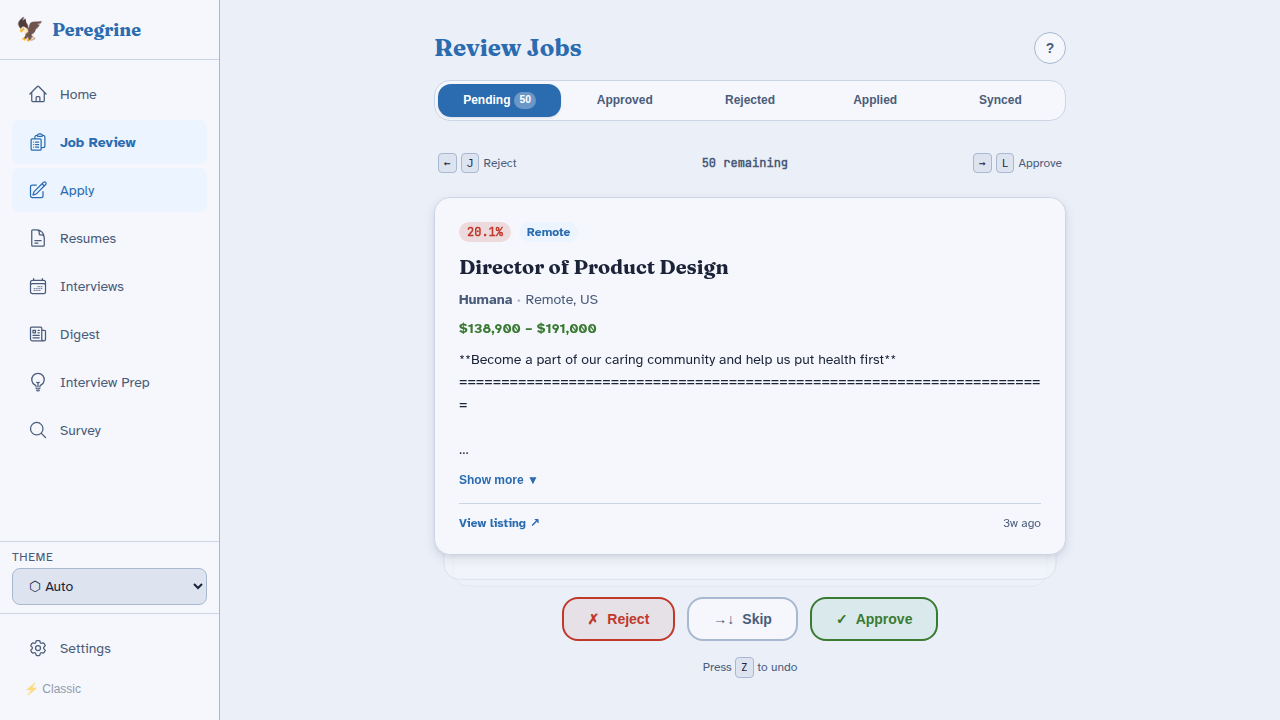
The Job Review page is where you approve or reject newly discovered jobs before they enter the application pipeline.
The Pending Queue
All jobs with status pending appear in the review queue. Jobs with email leads (matching email threads already in the job_contacts table) are sorted to the top of the queue automatically.
Sorting Options
Use the sort control at the top of the page to order the queue:
| Sort option | Description |
|---|---|
| Match score (high to low) | Jobs with the strongest keyword match appear first |
| Match score (low to high) | Useful for finding niche roles that scored low but are still interesting |
| Date found (newest) | Most recently discovered jobs first |
| Date found (oldest) | Oldest jobs first (useful for clearing a backlog) |
| Company (A-Z) | Alphabetical by company name |
Match Score and Keyword Gaps
Each job card shows:
- Match score (0–100) — percentage of your resume keywords found in the job description
- Keyword gaps — specific keywords from your profile that the job description is missing
A high match score does not guarantee a good fit; use it as a signal to prioritise your review, not as a final filter.
Reviewing Jobs
For each job in the queue you can:
- Approve — moves the job to
approvedstatus, making it available in the Apply Workspace - Reject — moves the job to
rejectedstatus and removes it from the queue - Skip — leaves the job in
pendingfor a later review session
Batch actions
Use the checkboxes to select multiple jobs at once, then click Approve selected or Reject selected to process them in bulk.
Job Detail View
Click a job title to expand the full detail view, which shows:
- Full job description
- Company name and location
- Source board and original URL
- Salary (if available)
- Remote/on-site status
- Match score and keyword gaps
- Any email threads already linked to this job
After Approval
Approved jobs appear in the Apply Workspace (page 4). From there you can generate a cover letter, export a PDF, and mark the job as applied.
If you decide not to apply after approving, you can reject the listing from within the Apply Workspace without losing your cover letter draft.